Global protect update
Estimated Reading Time: 1 Minutes |
2021 |
Updating Global protect software
To keep your college issued computer up to date and protected, we will be upgrading the VPN software (GlobalProtect).The upgrade process will disrupt connectivity; thus, we are encouraging you to manually initiate the upgrade processprior to devices beingautomatically upgraded. To perform the upgrade manually, follow these steps. Please allow 5 minutes in your schedule as this process will briefly disrupt connectivity.
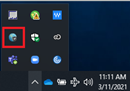
| 1. Open the GlobalProtect VPN from the system tray |
|
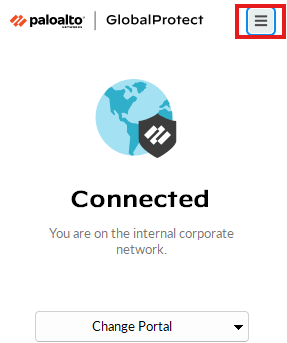
| 2. Select the menu in the upper right corner |
|
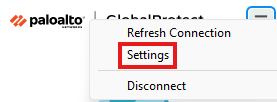
| 3. Select "Settings" from the menu |
|
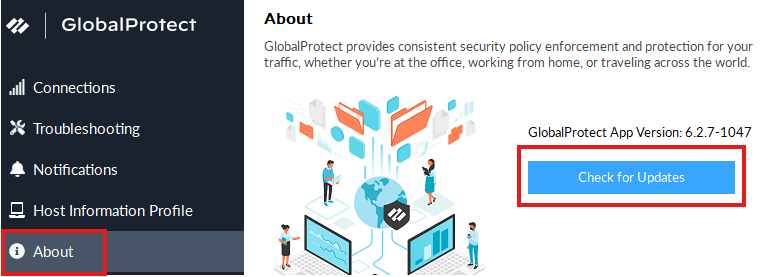
| 4. Select "About" and "Check for Updates" |
|
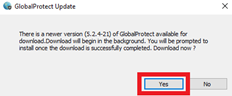
| 5. Select "yes" to initiate software download |
|
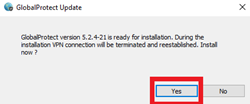
| 6. Select "yes" again to initiate the software installation |
|
|
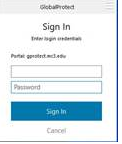
7.Within 60 seconds the software installation will complete. You may be prompted to login. |
|
**If you have any difficulty accessing the internet or other college network services, please contact the helpdesk.**